> ## Documentation Index
> Fetch the complete documentation index at: https://helium-mintlify-create-navigation-structure-42614.mintlify.site/llms.txt
> Use this file to discover all available pages before exploring further.
# SDK Quickstart (iOS)
> Integrate Helium into your iOS app
## Background
Get set up with the Helium SDK for iOS. Reach out over your Helium slack channel or email [founders@tryhelium.com](mailto:founders@tryhelium.com) for any questions.
## Installation
Version **4.x.x** of the iOS SDK just released on 1/27/26. To migrate from v3, view [the migration guide](/migrations/ios-3-to-4). You can also view the [v3 guide here](/sdk/quickstart-ios-v3).
Helium requires a minimum deployment target of iOS 15 and Xcode 14+. (Latest Xcode is recommended.)
We recommend using Swift Package Manager (SPM), but if your project primarily uses Cocoapods it might make sense to install the Helium Cocoapod instead.
1. In Xcode, navigate to your project's **Package Dependencies:**
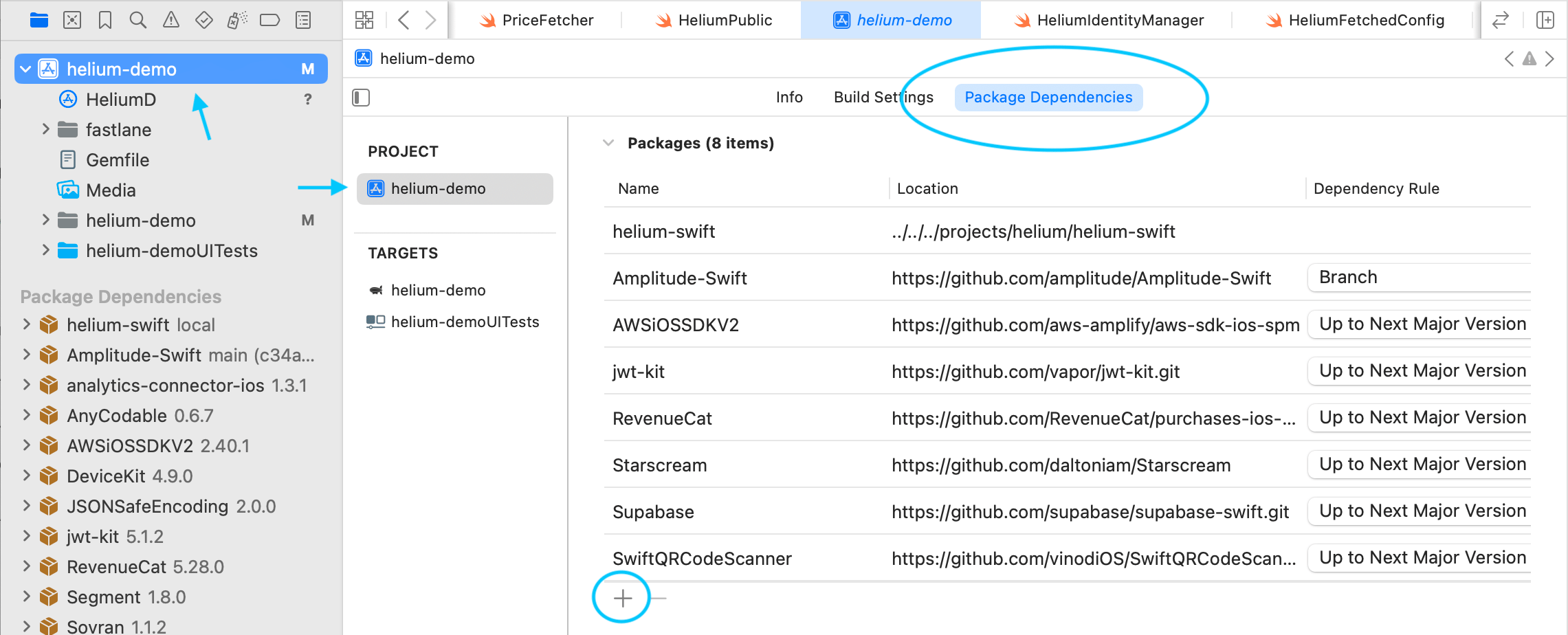 2. Click the **+** button and search for the Helium package URL:
```
https://github.com/cloudcaptainai/helium-swift.git
```
For **Dependency Rule** we recommend the default **Up to Next Major Version** to make sure you get non-breaking bug fixes. View the [list of releases](https://github.com/cloudcaptainai/helium-swift/releases) here.
3. Click **Add Package**.
4. In the dialog that appears, make sure to add the **Helium** product to your app's main target:
2. Click the **+** button and search for the Helium package URL:
```
https://github.com/cloudcaptainai/helium-swift.git
```
For **Dependency Rule** we recommend the default **Up to Next Major Version** to make sure you get non-breaking bug fixes. View the [list of releases](https://github.com/cloudcaptainai/helium-swift/releases) here.
3. Click **Add Package**.
4. In the dialog that appears, make sure to add the **Helium** product to your app's main target:
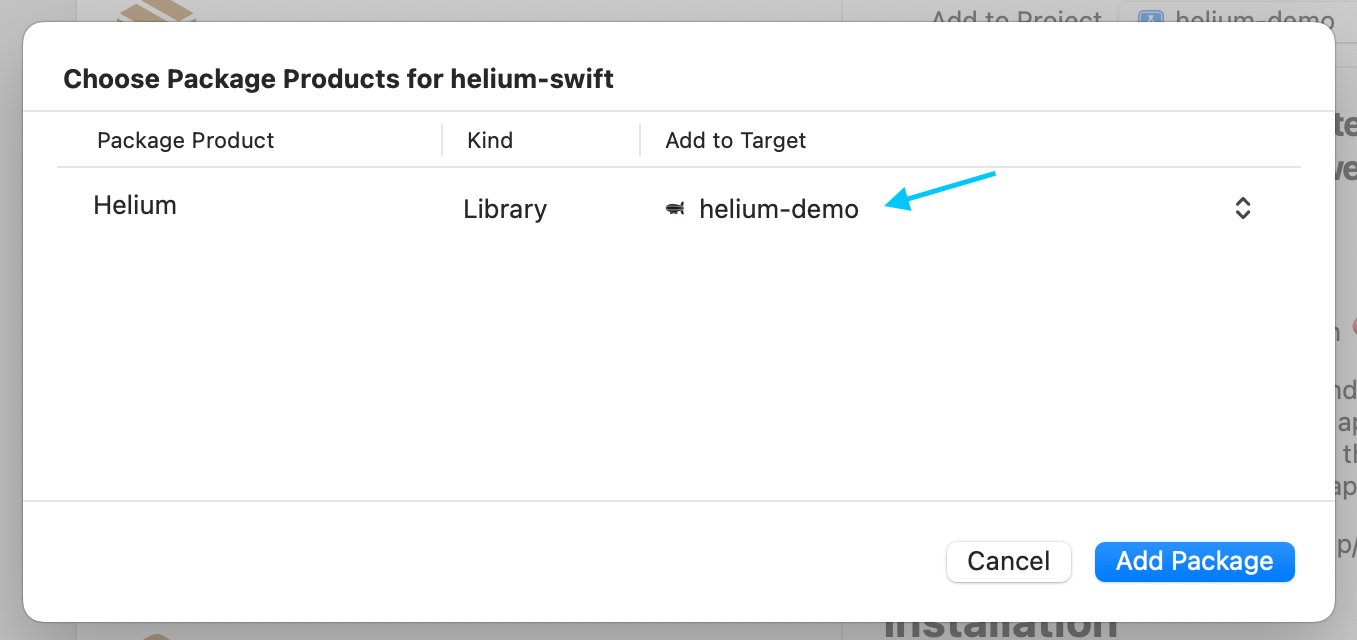 5. Select **Add Package** in the dialog and Helium should now be ready for import.
6. *(Optional)* If you are using RevenueCat to manage purchases, you'll need to add the **HeliumRevenueCat** package separately. This is a separate package from the core Helium SDK:
* Click the **+** button again and add:
```
https://github.com/cloudcaptainai/helium-swift-revenuecat.git
```
* Add the **HeliumRevenueCat** product to your app's main target.
* This enables the RevenueCatDelegate referenced in the **Purchase Handling** section of this guide.
The **HeliumRevenueCat** package includes [purchases-ios-spm](https://github.com/RevenueCat/purchases-ios-spm) as a dependency, *not* [purchases-ios](https://github.com/RevenueCat/purchases-ios) and you may encounter build issues if you are using **purchases-ios** with SPM. (We recommend just switching to **purchases-ios-spm**).
### Option 1: Core functionality only
Add this to your Podfile:
```ruby theme={null}
pod 'Helium', '~> 4.0'
```
Then run:
```bash theme={null}
pod install
```
### Option 2: Core + RevenueCat
Recommended if you are using RevenueCat to manage purchases.
Add this to your Podfile:
```ruby theme={null}
pod 'Helium/RevenueCat', '~> 4.0'
```
Then run:
```bash theme={null}
pod install
```
## Initialize Helium
Find your API key [here](https://app.tryhelium.com/profile)
Initialize the Helium SDK as early as possible in your app's lifecycle.
```swift theme={null}
Helium.shared.initialize(
apiKey: "helium-api-key"
)
```
Choose the appropriate location based on your app's architecture:
```swift theme={null}
@main
struct MyApp: App {
init() {
// Add this:
configureHelium()
}
var body: some Scene {
WindowGroup {
ContentView()
}
}
// And this:
private func configureHelium() {
// Identify user and adjust Helium.config if needed (see next sections).
// Then call initialize:
Helium.shared.initialize(apiKey: "helium-api-key")
}
}
```
```swift theme={null}
class SceneDelegate: UIResponder, UIWindowSceneDelegate {
var window: UIWindow?
func scene(_ scene: UIScene, willConnectTo session: UISceneSession, options connectionOptions: UIScene.ConnectionOptions) {
// Add this:
configureHelium()
}
// And this:
private func configureHelium() {
// Identify user and adjust Helium.config if needed (see next sections).
// Then call initialize:
Helium.shared.initialize(apiKey: "helium-api-key")
}
}
```
```swift theme={null}
@UIApplicationMain
class AppDelegate: UIResponder, UIApplicationDelegate {
var window: UIWindow?
func application(_ application: UIApplication, didFinishLaunchingWithOptions launchOptions: [UIApplication.LaunchOptionsKey: Any]?) -> Bool {
// Add this:
configureHelium()
return true
}
// And this:
private func configureHelium() {
// Identify user and adjust Helium.config if needed (see next sections).
// Then call initialize:
Helium.shared.initialize(apiKey: "helium-api-key")
}
}
```
And add necessary imports:
```swift theme={null}
import Helium
```
Helium's initialization is ran on a background thread, so you don't have to worry about it affecting your app's launch time.
## Identifying Users
Identifying users is optional but can help with targeting and when forwarding events to external analytics platforms.
If you are not sure, you probably do not need to identify your users.
Identify users as early as you can to maximize consistency in metrics and targeting. Ideally right before you call Helium.shared.initialize!
Set a custom user ID
```swift theme={null}
Helium.identify.userId = "custom-user-id"
```
Set RevenueCat app user ID (if using RevenueCat)
```swift theme={null}
Helium.identify.revenueCatAppUserId = Purchases.shared.appUserID
```
If you use a custom [appAccountToken](https://developer.apple.com/documentation/appstoreserverapi/appaccounttoken)
```swift theme={null}
if let appAccountTokenUUID = UUID(uuidString: "app-account-token-uuid") {
Helium.identify.appAccountToken = appAccountTokenUUID
}
```
Set custom user traits for targeting and analytics visibility
```swift theme={null}
Helium.identify.setUserTraits(HeliumUserTraits(["hasOnboarded": true]))
// or Helium.identify.addUserTraits() if you don't want to clear existing traits
```
## Presenting Paywalls
You must have a trigger and workflow configured in the [dashboard](https://app.tryhelium.com/workflows) in order to show a paywall.
Call `presentPaywall` when you want to show a full-screen paywall. For example:
```swift theme={null}
Helium.shared.presentPaywall(
trigger: "premium"
) { paywallNotShownReason in
switch paywallNotShownReason {
case .targetingHoldout:
break
case .alreadyEntitled:
// e.g. ensure premium access
// In order for this case to be hit, `config.dontShowIfAlreadyEntitled` must be true
break
default:
// handle the rare case where a paywall
// fails to show (see Fallbacks section on this page)
break
}
}
```
The trigger name configured in the Helium dashboard
*(Optional)* Configuration for this paywall presentation
```swift theme={null}
struct PaywallPresentationConfig {
// View controller to present from. Defaults to current top view controller
var presentFromViewController: UIViewController? = nil
// Custom traits to send to the paywall
var customPaywallTraits: [String: Any]? = nil
// Don't show paywall if user is entitled to a product in paywall
var dontShowIfAlreadyEntitled: Bool = false
// How long to allow loading state before switching to fallback logic.
// Use zero or negative value to disable loading state.
var loadingBudget: TimeInterval = DEFAULT_LOADING_BUDGET
}
```
*(Optional)* Event handlers for paywall lifecycle events
*(Optional)* A handler for when user is entitled to a product in the paywall, via purchase or existing entitlement.
Handle any scenario where the paywall does not show. If user is already entitled and `config.dontShowIfAlreadyEntitled` is true, `onPaywallNotShown(.alreadyEntitled)` will be called only if `onEntitled` is not provided.
You should now be able to see Helium paywalls in your app! Well done! 🎉
Looking for alternative presentation methods? Check out the guide on [Ways to Show a Paywall](/guides/ways-to-show-paywall).
### PaywallEventHandlers
When displaying a paywall you can pass in event handlers to listen for relevant [Helium Events](/sdk/helium-events). You can chain a subset of handlers with builder syntax:
```swift theme={null}
Helium.shared.presentPaywall(
trigger: "post_onboarding",
eventHandlers: PaywallEventHandlers()
.onOpen { event in
print("open via trigger \(event.triggerName)")
}
.onClose { event in
print("close for trigger \(event.triggerName)")
}
.onDismissed { event in
print("dismiss for trigger \(event.triggerName)")
}
.onPurchaseSucceeded { event in
print("purchase succeeded for trigger \(event.triggerName)")
}
.onCustomPaywallAction { event in
print("Custom action: \(event.actionName) with params: \(event.params)")
}
.onAnyEvent { event in
// A handler for all paywall-related events.
// Note that if you have other handlers (i.e. onOpen) set up,
// both that handler AND this one will fire during paywall open.
}
) { paywallNotShownReason in
// handle paywall not shown
}
```
## Purchase Handling
By default, Helium will handle purchases for you! This section is for those who want to delegate purchases to RevenueCat or implement custom purchase logic.
Use one of our pre-built `HeliumPurchaseDelegate` implementations or create a custom delegate. Pass the delegate in to your `Helium.shared.initialize` call.
The StoreKitDelegate (default delegate) handles purchases using native StoreKit 2:
```swift theme={null}
Helium.config.purchaseDelegate = StoreKitDelegate()
```
Want to add some custom behavior but still use the built-in purchase logic? Just subclass `StoreKitDelegate` or `RevenueCatDelegate`! (Be sure to make a `super` call for any overridden methods.)
Make sure you included HeliumRevenueCat (for SPM) or Helium/RevenueCat (for Cocoapod) as noted in the Installation section.
Use RevenueCatDelegate to handle purchases through RevenueCat:
```swift theme={null}
import HeliumRevenueCat // unless using Cocoapod then can just import Helium
let heliumPurchaseDelegate = RevenueCatDelegate(
// Optional - pass in to have Helium to handle RevenueCat initialization.
revenueCatApiKey: ""
)
Helium.config.purchaseDelegate = heliumPurchaseDelegate
```
If you do not supply `revenueCatApiKey`, make sure to initialize RevenueCat *before* creating the RevenueCatDelegate!
You can also create a custom delegate and implement your own purchase logic. You can look at our `StoreKitDelegate` and `RevenueCatDelegate` in the SDK for examples (also linked below).
The `HeliumPaywallDelegate` is defined as follows:
```swift theme={null}
public protocol HeliumPurchaseDelegate: AnyObject {
// Execute the purchase of a product given the product ID.
func makePurchase(productId: String) async -> HeliumPaywallTransactionStatus
// (Optional) - Restore any existing subscriptions.
// Return a boolean indicating whether the restore was successful.
func restorePurchases() async -> Bool
// (Optional) - Called for all Helium events (e.g. PaywallOpenEvent)
func onPaywallEvent(_ event: HeliumEvent)
}
```
`HeliumPaywallTransactionStatus` is an enum that defines the possible states of a paywall transaction:
```swift theme={null}
public enum HeliumPaywallTransactionStatus {
case purchased
case cancelled
case failed(Error)
case restored
case pending
}
```
Visit [Helium Events](/sdk/helium-events) for details on the different Helium paywall events.
When executing the purchase via StoreKit 2 (recommended over StoreKit 1), please use `Product.heliumPurchase()` instead of `Product.purchase()`. For example:
`let result = try await product.heliumPurchase()`
This will automatically set attribution information for [revenue tracking](/guides/revenue-reporting).
StoreKitDelegate example [here](https://github.com/cloudcaptainai/helium-swift/blob/main/Sources/Helium/HeliumCore/StoreKitDelegate.swift).
RevenueCatDelegate example [here](https://github.com/cloudcaptainai/helium-swift/blob/main/Sources/HeliumRevenueCat/HeliumRevenueCat.swift).
## Listen for Helium Events
[Helium Events](/sdk/helium-events) are emitted by Helium for various paywall actions, purchase completions, and more. Options to listen for these events include:
### 1. Add a HeliumEventListener
```swift theme={null}
/// Implement this where you want to handle events
public protocol HeliumEventListener : AnyObject {
func onHeliumEvent(event: HeliumEvent)
}
/// Add a listener for all Helium events.
public func addHeliumEventListener(_ listener: HeliumEventListener)
/// Remove a specific Helium event listener.
public func removeHeliumEventListener(_ listener: HeliumEventListener)
```
Listeners are held **weakly** to prevent memory leaks. If you don't maintain a strong reference to your listener, it will be deallocated immediately and no events will fire.
```swift theme={null}
// ❌ Wrong - listener is deallocated immediately, no events will fire
Helium.shared.addHeliumEventListener(MyListener())
// ✅ Works - singleton keeps a strong reference
class MyHeliumEventListener: HeliumEventListener {
static let shared = MyHeliumEventListener()
func onHeliumEvent(event: any HeliumEvent) {
print("Helium event: \(event.toDictionary())")
}
}
// And make sure to register it:
Helium.shared.addHeliumEventListener(MyHeliumEventListener.shared)
```
### 2. Use PaywallEventHandlers for paywall-specific events
See the section titled PaywallEventHandlers on this page.
## Checking Subscription Status & Entitlements
If you use an external payment processor like Stripe, Helium's entitlement helpers may not be reliable. We recommend implementing your own entitlement checking in that case. If you use Stripe with RevenueCat, we recommend using [RevenueCat's entitlement APIs](https://www.revenuecat.com/docs/getting-started/entitlements) instead.
The Helium SDK provides several ways to check user entitlements and subscription status.
`hasAny()` Checks if the user has purchased any subscription or non-consumable product.
`hasAnyActiveSubscription()` Checks if the user has any active subscription.
`hasEntitlementForPaywall(trigger: String, considerAssociatedSubscriptions: Bool = false)` Checks if the user has entitlements for any product in a specific paywall. Returns `nil` if paywall configuration hasn't been downloaded yet.
`hasActiveEntitlementFor(productId: String)` Checks if the user has entitlement to a specific product.
`hasActiveSubscriptionFor(productId: String)` Checks if the user has an active subscription for a specific product.
`hasActiveSubscriptionFor(subscriptionGroupID: String)` Checks if the user has an active subscription in a specific subscription group.
`purchasedProductIds()` Retrieves a list of all product IDs the user currently has access to.
`activeSubscriptions()` Returns detailed information about all active auto-renewing subscriptions.
`subscriptionStatusFor(productId: String)` Gets detailed subscription status for a specific product, including state information like subscribed, expired, or in grace period.
`subscriptionStatusFor(subscriptionGroupID: String)` Gets detailed subscription status for a specific subscription group.
#### Example Usage
Check entitlements before showing paywalls to avoid showing a paywall to a user who should not see it.
```swift Use dontShowIfAlreadyEntitled with presentPaywall theme={null}
Helium.shared.presentPaywall(
trigger: "my_paywall_trigger",
config: PaywallPresentationConfig(
dontShowIfAlreadyEntitled: true
)
) { paywallNotShownReason in
// handle paywall not shown
}
```
```swift Check before showing paywall theme={null}
let hasActiveSubscription = await Helium.entitlements.hasAnyActiveSubscription()
if hasActiveSubscription {
// access premium content
} else {
// show paywall
}
```
## Fallbacks
It is highly recommended that you set up a [fallbacks](/guides/fallback-bundle) in the uncommon case where a paywall fails to display. Please follow the linked guide to do so.
Note that if you attempt to display a paywall while it is still being downloaded, a loading state will show.
By default, Helium will show this loading state as needed (a shimmer view for up to 7 seconds). You can configure this loading state during presentation or set global values.
```swift theme={null}
Helium.config.defaultLoadingBudget = 5
Helium.config.defaultLoadingView = Text("Loading...")
```
If the budget expires before the paywall is ready, a fallback paywall will show if available otherwise the loading state will hide and a [PaywallOpenFailed](/sdk/helium-events) event will be dispatched.
See the [Fallbacks Guide](/guides/fallback-bundle) for more details on downloading and configuring fallbacks.
## Advanced
In most cases there is no need to check download status. Helium will display a loading indication if a paywall is presented before download has completed.
You can check the status of the paywall configuration download using the `Helium.shared.getDownloadStatus()` method. This method returns a value of type `HeliumFetchedConfigStatus`, which is defined as follows:
```swift theme={null}
public enum HeliumFetchedConfigStatus: String, Codable, Equatable {
case notDownloadedYet
case inProgress
case downloadSuccess
case downloadFailure
}
```
You can also simply check if paywalls have been successfully downloaded with `Helium.shared.paywallsLoaded()`.
Retrieve basic information about the paywall for a specific trigger with `Helium.shared.getPaywallInfo(trigger: String)` which returns:
```swift theme={null}
public struct PaywallInfo {
public let paywallTemplateName: String
// shouldShow only false if the paywall should not be shown due to targeting or workflow configuration (Helium handles this for you in presentUpsell)
public let shouldShow: Bool
}
```
This method can be used if you want to be certain that a paywall is ready for display before displaying.
You can programmatically hide paywalls using:
```swift theme={null}
// Hide the current paywall
Helium.shared.hidePaywall()
// Hide all currently displayed paywalls
Helium.shared.hideAllPaywalls()
```
Reset Helium entirely so you can call initialize again. Only for advanced use cases.
```swift theme={null}
Helium.resetHelium()
```
5. Select **Add Package** in the dialog and Helium should now be ready for import.
6. *(Optional)* If you are using RevenueCat to manage purchases, you'll need to add the **HeliumRevenueCat** package separately. This is a separate package from the core Helium SDK:
* Click the **+** button again and add:
```
https://github.com/cloudcaptainai/helium-swift-revenuecat.git
```
* Add the **HeliumRevenueCat** product to your app's main target.
* This enables the RevenueCatDelegate referenced in the **Purchase Handling** section of this guide.
The **HeliumRevenueCat** package includes [purchases-ios-spm](https://github.com/RevenueCat/purchases-ios-spm) as a dependency, *not* [purchases-ios](https://github.com/RevenueCat/purchases-ios) and you may encounter build issues if you are using **purchases-ios** with SPM. (We recommend just switching to **purchases-ios-spm**).
### Option 1: Core functionality only
Add this to your Podfile:
```ruby theme={null}
pod 'Helium', '~> 4.0'
```
Then run:
```bash theme={null}
pod install
```
### Option 2: Core + RevenueCat
Recommended if you are using RevenueCat to manage purchases.
Add this to your Podfile:
```ruby theme={null}
pod 'Helium/RevenueCat', '~> 4.0'
```
Then run:
```bash theme={null}
pod install
```
## Initialize Helium
Find your API key [here](https://app.tryhelium.com/profile)
Initialize the Helium SDK as early as possible in your app's lifecycle.
```swift theme={null}
Helium.shared.initialize(
apiKey: "helium-api-key"
)
```
Choose the appropriate location based on your app's architecture:
```swift theme={null}
@main
struct MyApp: App {
init() {
// Add this:
configureHelium()
}
var body: some Scene {
WindowGroup {
ContentView()
}
}
// And this:
private func configureHelium() {
// Identify user and adjust Helium.config if needed (see next sections).
// Then call initialize:
Helium.shared.initialize(apiKey: "helium-api-key")
}
}
```
```swift theme={null}
class SceneDelegate: UIResponder, UIWindowSceneDelegate {
var window: UIWindow?
func scene(_ scene: UIScene, willConnectTo session: UISceneSession, options connectionOptions: UIScene.ConnectionOptions) {
// Add this:
configureHelium()
}
// And this:
private func configureHelium() {
// Identify user and adjust Helium.config if needed (see next sections).
// Then call initialize:
Helium.shared.initialize(apiKey: "helium-api-key")
}
}
```
```swift theme={null}
@UIApplicationMain
class AppDelegate: UIResponder, UIApplicationDelegate {
var window: UIWindow?
func application(_ application: UIApplication, didFinishLaunchingWithOptions launchOptions: [UIApplication.LaunchOptionsKey: Any]?) -> Bool {
// Add this:
configureHelium()
return true
}
// And this:
private func configureHelium() {
// Identify user and adjust Helium.config if needed (see next sections).
// Then call initialize:
Helium.shared.initialize(apiKey: "helium-api-key")
}
}
```
And add necessary imports:
```swift theme={null}
import Helium
```
Helium's initialization is ran on a background thread, so you don't have to worry about it affecting your app's launch time.
## Identifying Users
Identifying users is optional but can help with targeting and when forwarding events to external analytics platforms.
If you are not sure, you probably do not need to identify your users.
Identify users as early as you can to maximize consistency in metrics and targeting. Ideally right before you call Helium.shared.initialize!
Set a custom user ID
```swift theme={null}
Helium.identify.userId = "custom-user-id"
```
Set RevenueCat app user ID (if using RevenueCat)
```swift theme={null}
Helium.identify.revenueCatAppUserId = Purchases.shared.appUserID
```
If you use a custom [appAccountToken](https://developer.apple.com/documentation/appstoreserverapi/appaccounttoken)
```swift theme={null}
if let appAccountTokenUUID = UUID(uuidString: "app-account-token-uuid") {
Helium.identify.appAccountToken = appAccountTokenUUID
}
```
Set custom user traits for targeting and analytics visibility
```swift theme={null}
Helium.identify.setUserTraits(HeliumUserTraits(["hasOnboarded": true]))
// or Helium.identify.addUserTraits() if you don't want to clear existing traits
```
## Presenting Paywalls
You must have a trigger and workflow configured in the [dashboard](https://app.tryhelium.com/workflows) in order to show a paywall.
Call `presentPaywall` when you want to show a full-screen paywall. For example:
```swift theme={null}
Helium.shared.presentPaywall(
trigger: "premium"
) { paywallNotShownReason in
switch paywallNotShownReason {
case .targetingHoldout:
break
case .alreadyEntitled:
// e.g. ensure premium access
// In order for this case to be hit, `config.dontShowIfAlreadyEntitled` must be true
break
default:
// handle the rare case where a paywall
// fails to show (see Fallbacks section on this page)
break
}
}
```
The trigger name configured in the Helium dashboard
*(Optional)* Configuration for this paywall presentation
```swift theme={null}
struct PaywallPresentationConfig {
// View controller to present from. Defaults to current top view controller
var presentFromViewController: UIViewController? = nil
// Custom traits to send to the paywall
var customPaywallTraits: [String: Any]? = nil
// Don't show paywall if user is entitled to a product in paywall
var dontShowIfAlreadyEntitled: Bool = false
// How long to allow loading state before switching to fallback logic.
// Use zero or negative value to disable loading state.
var loadingBudget: TimeInterval = DEFAULT_LOADING_BUDGET
}
```
*(Optional)* Event handlers for paywall lifecycle events
*(Optional)* A handler for when user is entitled to a product in the paywall, via purchase or existing entitlement.
Handle any scenario where the paywall does not show. If user is already entitled and `config.dontShowIfAlreadyEntitled` is true, `onPaywallNotShown(.alreadyEntitled)` will be called only if `onEntitled` is not provided.
You should now be able to see Helium paywalls in your app! Well done! 🎉
Looking for alternative presentation methods? Check out the guide on [Ways to Show a Paywall](/guides/ways-to-show-paywall).
### PaywallEventHandlers
When displaying a paywall you can pass in event handlers to listen for relevant [Helium Events](/sdk/helium-events). You can chain a subset of handlers with builder syntax:
```swift theme={null}
Helium.shared.presentPaywall(
trigger: "post_onboarding",
eventHandlers: PaywallEventHandlers()
.onOpen { event in
print("open via trigger \(event.triggerName)")
}
.onClose { event in
print("close for trigger \(event.triggerName)")
}
.onDismissed { event in
print("dismiss for trigger \(event.triggerName)")
}
.onPurchaseSucceeded { event in
print("purchase succeeded for trigger \(event.triggerName)")
}
.onCustomPaywallAction { event in
print("Custom action: \(event.actionName) with params: \(event.params)")
}
.onAnyEvent { event in
// A handler for all paywall-related events.
// Note that if you have other handlers (i.e. onOpen) set up,
// both that handler AND this one will fire during paywall open.
}
) { paywallNotShownReason in
// handle paywall not shown
}
```
## Purchase Handling
By default, Helium will handle purchases for you! This section is for those who want to delegate purchases to RevenueCat or implement custom purchase logic.
Use one of our pre-built `HeliumPurchaseDelegate` implementations or create a custom delegate. Pass the delegate in to your `Helium.shared.initialize` call.
The StoreKitDelegate (default delegate) handles purchases using native StoreKit 2:
```swift theme={null}
Helium.config.purchaseDelegate = StoreKitDelegate()
```
Want to add some custom behavior but still use the built-in purchase logic? Just subclass `StoreKitDelegate` or `RevenueCatDelegate`! (Be sure to make a `super` call for any overridden methods.)
Make sure you included HeliumRevenueCat (for SPM) or Helium/RevenueCat (for Cocoapod) as noted in the Installation section.
Use RevenueCatDelegate to handle purchases through RevenueCat:
```swift theme={null}
import HeliumRevenueCat // unless using Cocoapod then can just import Helium
let heliumPurchaseDelegate = RevenueCatDelegate(
// Optional - pass in to have Helium to handle RevenueCat initialization.
revenueCatApiKey: ""
)
Helium.config.purchaseDelegate = heliumPurchaseDelegate
```
If you do not supply `revenueCatApiKey`, make sure to initialize RevenueCat *before* creating the RevenueCatDelegate!
You can also create a custom delegate and implement your own purchase logic. You can look at our `StoreKitDelegate` and `RevenueCatDelegate` in the SDK for examples (also linked below).
The `HeliumPaywallDelegate` is defined as follows:
```swift theme={null}
public protocol HeliumPurchaseDelegate: AnyObject {
// Execute the purchase of a product given the product ID.
func makePurchase(productId: String) async -> HeliumPaywallTransactionStatus
// (Optional) - Restore any existing subscriptions.
// Return a boolean indicating whether the restore was successful.
func restorePurchases() async -> Bool
// (Optional) - Called for all Helium events (e.g. PaywallOpenEvent)
func onPaywallEvent(_ event: HeliumEvent)
}
```
`HeliumPaywallTransactionStatus` is an enum that defines the possible states of a paywall transaction:
```swift theme={null}
public enum HeliumPaywallTransactionStatus {
case purchased
case cancelled
case failed(Error)
case restored
case pending
}
```
Visit [Helium Events](/sdk/helium-events) for details on the different Helium paywall events.
When executing the purchase via StoreKit 2 (recommended over StoreKit 1), please use `Product.heliumPurchase()` instead of `Product.purchase()`. For example:
`let result = try await product.heliumPurchase()`
This will automatically set attribution information for [revenue tracking](/guides/revenue-reporting).
StoreKitDelegate example [here](https://github.com/cloudcaptainai/helium-swift/blob/main/Sources/Helium/HeliumCore/StoreKitDelegate.swift).
RevenueCatDelegate example [here](https://github.com/cloudcaptainai/helium-swift/blob/main/Sources/HeliumRevenueCat/HeliumRevenueCat.swift).
## Listen for Helium Events
[Helium Events](/sdk/helium-events) are emitted by Helium for various paywall actions, purchase completions, and more. Options to listen for these events include:
### 1. Add a HeliumEventListener
```swift theme={null}
/// Implement this where you want to handle events
public protocol HeliumEventListener : AnyObject {
func onHeliumEvent(event: HeliumEvent)
}
/// Add a listener for all Helium events.
public func addHeliumEventListener(_ listener: HeliumEventListener)
/// Remove a specific Helium event listener.
public func removeHeliumEventListener(_ listener: HeliumEventListener)
```
Listeners are held **weakly** to prevent memory leaks. If you don't maintain a strong reference to your listener, it will be deallocated immediately and no events will fire.
```swift theme={null}
// ❌ Wrong - listener is deallocated immediately, no events will fire
Helium.shared.addHeliumEventListener(MyListener())
// ✅ Works - singleton keeps a strong reference
class MyHeliumEventListener: HeliumEventListener {
static let shared = MyHeliumEventListener()
func onHeliumEvent(event: any HeliumEvent) {
print("Helium event: \(event.toDictionary())")
}
}
// And make sure to register it:
Helium.shared.addHeliumEventListener(MyHeliumEventListener.shared)
```
### 2. Use PaywallEventHandlers for paywall-specific events
See the section titled PaywallEventHandlers on this page.
## Checking Subscription Status & Entitlements
If you use an external payment processor like Stripe, Helium's entitlement helpers may not be reliable. We recommend implementing your own entitlement checking in that case. If you use Stripe with RevenueCat, we recommend using [RevenueCat's entitlement APIs](https://www.revenuecat.com/docs/getting-started/entitlements) instead.
The Helium SDK provides several ways to check user entitlements and subscription status.
`hasAny()` Checks if the user has purchased any subscription or non-consumable product.
`hasAnyActiveSubscription()` Checks if the user has any active subscription.
`hasEntitlementForPaywall(trigger: String, considerAssociatedSubscriptions: Bool = false)` Checks if the user has entitlements for any product in a specific paywall. Returns `nil` if paywall configuration hasn't been downloaded yet.
`hasActiveEntitlementFor(productId: String)` Checks if the user has entitlement to a specific product.
`hasActiveSubscriptionFor(productId: String)` Checks if the user has an active subscription for a specific product.
`hasActiveSubscriptionFor(subscriptionGroupID: String)` Checks if the user has an active subscription in a specific subscription group.
`purchasedProductIds()` Retrieves a list of all product IDs the user currently has access to.
`activeSubscriptions()` Returns detailed information about all active auto-renewing subscriptions.
`subscriptionStatusFor(productId: String)` Gets detailed subscription status for a specific product, including state information like subscribed, expired, or in grace period.
`subscriptionStatusFor(subscriptionGroupID: String)` Gets detailed subscription status for a specific subscription group.
#### Example Usage
Check entitlements before showing paywalls to avoid showing a paywall to a user who should not see it.
```swift Use dontShowIfAlreadyEntitled with presentPaywall theme={null}
Helium.shared.presentPaywall(
trigger: "my_paywall_trigger",
config: PaywallPresentationConfig(
dontShowIfAlreadyEntitled: true
)
) { paywallNotShownReason in
// handle paywall not shown
}
```
```swift Check before showing paywall theme={null}
let hasActiveSubscription = await Helium.entitlements.hasAnyActiveSubscription()
if hasActiveSubscription {
// access premium content
} else {
// show paywall
}
```
## Fallbacks
It is highly recommended that you set up a [fallbacks](/guides/fallback-bundle) in the uncommon case where a paywall fails to display. Please follow the linked guide to do so.
Note that if you attempt to display a paywall while it is still being downloaded, a loading state will show.
By default, Helium will show this loading state as needed (a shimmer view for up to 7 seconds). You can configure this loading state during presentation or set global values.
```swift theme={null}
Helium.config.defaultLoadingBudget = 5
Helium.config.defaultLoadingView = Text("Loading...")
```
If the budget expires before the paywall is ready, a fallback paywall will show if available otherwise the loading state will hide and a [PaywallOpenFailed](/sdk/helium-events) event will be dispatched.
See the [Fallbacks Guide](/guides/fallback-bundle) for more details on downloading and configuring fallbacks.
## Advanced
In most cases there is no need to check download status. Helium will display a loading indication if a paywall is presented before download has completed.
You can check the status of the paywall configuration download using the `Helium.shared.getDownloadStatus()` method. This method returns a value of type `HeliumFetchedConfigStatus`, which is defined as follows:
```swift theme={null}
public enum HeliumFetchedConfigStatus: String, Codable, Equatable {
case notDownloadedYet
case inProgress
case downloadSuccess
case downloadFailure
}
```
You can also simply check if paywalls have been successfully downloaded with `Helium.shared.paywallsLoaded()`.
Retrieve basic information about the paywall for a specific trigger with `Helium.shared.getPaywallInfo(trigger: String)` which returns:
```swift theme={null}
public struct PaywallInfo {
public let paywallTemplateName: String
// shouldShow only false if the paywall should not be shown due to targeting or workflow configuration (Helium handles this for you in presentUpsell)
public let shouldShow: Bool
}
```
This method can be used if you want to be certain that a paywall is ready for display before displaying.
You can programmatically hide paywalls using:
```swift theme={null}
// Hide the current paywall
Helium.shared.hidePaywall()
// Hide all currently displayed paywalls
Helium.shared.hideAllPaywalls()
```
Reset Helium entirely so you can call initialize again. Only for advanced use cases.
```swift theme={null}
Helium.resetHelium()
```